
Your team asks AI.
Orbit is the wiki that remembers.
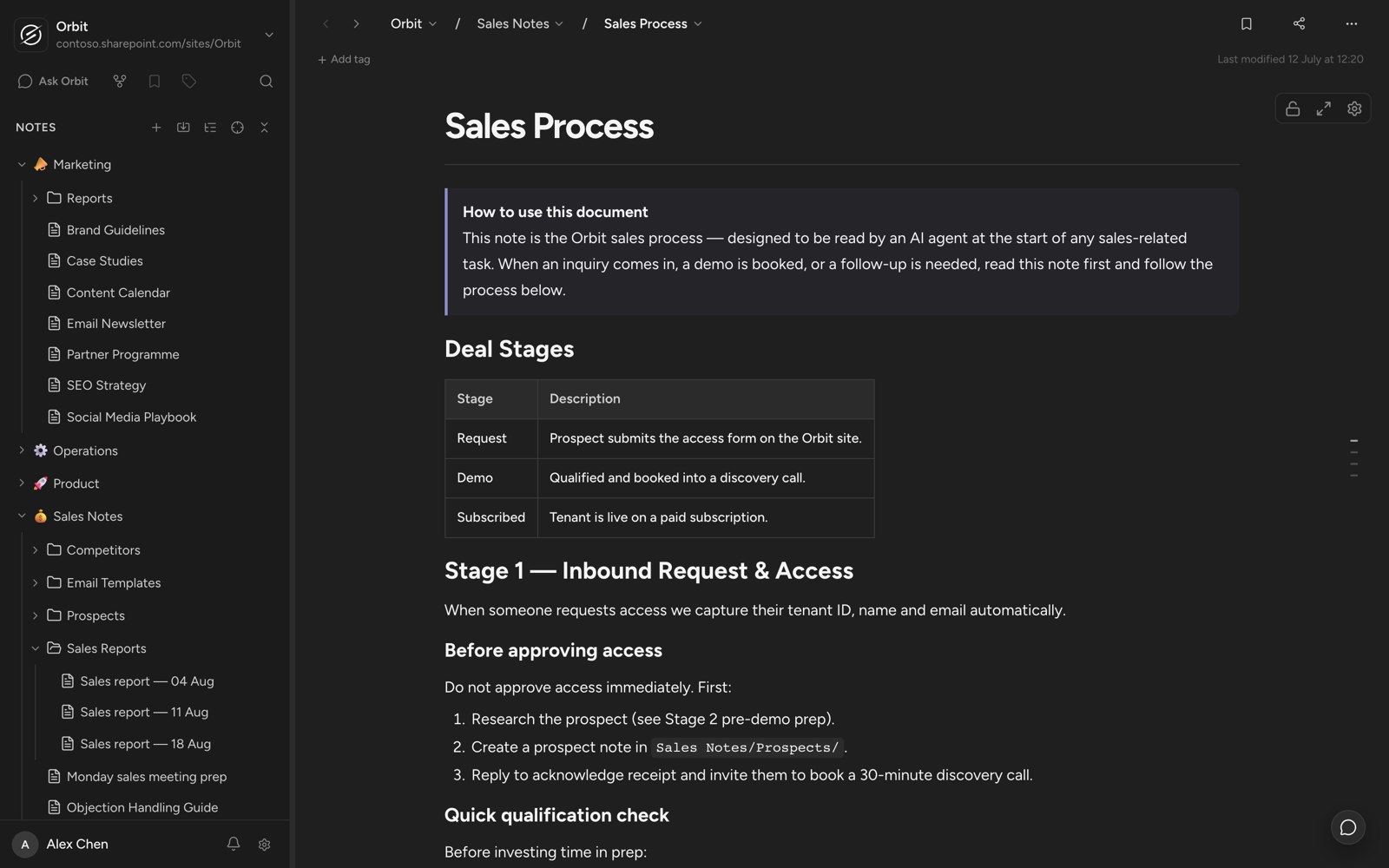
Orbit is your team's shared memory - the wiki that captures AI conversations, pulls real answers from what you know and runs the repeat work.
Orbit connects Microsoft 365 to the AI your team already uses



Turn AI conversations into answers everyone can find
Here's what gets in the way
AI conversations happen outside Microsoft 365. Close the tab, lose the knowledge.
Agents have no access to your team's real work, so they fill the gap with guesswork.

The same tasks using AI get redone from scratch. Nothing ever runs on its own.
Orbit
Key Features
One-step wiki capture
Turn any AI conversation into a structured note in your wiki, with one instruction. So the wiki only fills up with things actually worth finding later.
Ask Orbit. Get the source
Real answers, built from your team's notes and every AI conversation you've already saved. Ask once. Orbit cites the source, and flags any gaps instead of guessing.
Teach it once. It builds the wiki for you
Save an instruction once. Your AI agent runs it quietly in the background and every result lands back in the wiki. No reminders, no repeats, just a knowledge base that keeps building itself.
Features
Built around how your team already works
Meeting notes, linked knowledge and team workspaces, all inside Microsoft 365.Pick one to see it in action.
Build a team guide with checklists, tables and diagrams.Keep everything together in one editable note.
Use Cases
Trusted by teams to automate the busy work
Every AI conversation is a head start. Orbit makes sure it doesn't go to waste.
IT: Monday handover note.Every Monday, Claude brings Jira tickets and Teams support updates together in Orbit.
Security
No data leaves Microsoft 365
Orbit writes every note to the SharePoint sites and OneDrive folders you choose.
- No IT approval needed to start
- Nothing stored on Orbit's servers
- Existing permissions still apply
- Signs in with your Microsoft account
 No IT approval needed to start
Questions
Frequently asked questions
What is Sprocket Orbit?
Orbit is a wiki for Microsoft 365 teams that connects to AI. It stores your team's knowledge as notes inside SharePoint and OneDrive, and lets any AI platform, including Claude, Copilot, and ChatGPT, read from that knowledge before answering and write new knowledge back into it after.
What problem does Sprocket Orbit solve?
Teams already use AI every day, but the answers happen in one-off chats that disappear the moment the tab closes. Nobody else can find them, and the next person with the same question starts from zero. Orbit gives that knowledge a permanent home so it can be found and reused.
How is Orbit different from a regular wiki, like Confluence or SharePoint pages?
A regular wiki only stores what a person manually writes and updates. Orbit does that too, but it also connects to AI platforms directly, so an AI can search the wiki for context before answering a question, and write the answer back into the wiki once it's confirmed correct. The wiki updates itself over time instead of relying on someone remembering to edit it.
Does Orbit work with ChatGPT, Claude, and Copilot?
Yes. Orbit is not tied to one AI model. You connect your chosen AI platform, whether that's Claude, Copilot, or ChatGPT, and it can read from and write into your Orbit wiki. Different people on the same team can use different AI platforms and still work from the same shared knowledge.
Where is the data stored? Is it secure?
Orbit stores everything as files inside your organisation's own SharePoint and OneDrive, using your existing Microsoft 365 tenant. Nothing moves to a third-party database. Your business information stays inside your Microsoft 365 boundary.
What does "Capture" mean in Orbit?
Capture is how knowledge gets into the wiki. When an AI conversation produces a useful answer, one instruction saves that answer as a structured note in the wiki. You choose what's worth keeping, so the wiki only fills up with knowledge that's actually useful.
What does "Ask Orbit" do?
Ask Orbit lets you ask a question in plain language and get an answer in seconds, along with the note it came from. The answer is grounded in your team's own wiki, not a generic AI guess, and the citation means you can check the source yourself.
What does "Automate" mean in Orbit?
Automate means storing an instruction once and letting an agent run it repeatedly. Examples include drafting the first response to a support ticket, filing meeting notes automatically, or building a weekly report before anyone's logged on. Every result the agent produces gets saved back into the wiki, so the knowledge builds on itself over time.
Who is Orbit built for?
Orbit is built for teams inside 50 to 500 person companies that already run on Microsoft 365 and use an AI platform like Copilot or Claude daily. It's most useful for a team that keeps answering the same recurring questions and wants that knowledge captured once instead of re-explained every time.
Do I need a Microsoft 365 account to use Orbit?
Yes. Orbit is built natively on Microsoft 365. It uses SharePoint and OneDrive to store notes and Microsoft Teams as an optional front door, so your organisation needs an existing Microsoft 365 environment for Orbit to connect to.
Can I access Orbit inside Microsoft Teams?
Yes. Orbit works the same whether you open it in a browser or inside Microsoft Teams. It's the same wiki either way, so changes made in one place appear instantly in the other.
What happens to the knowledge my team already has in one-off AI chats?
Right now, it stays locked inside those individual chat histories and is effectively lost to the rest of the team. Orbit solves this by giving your AI platform a shared wiki to write into, so once a chat produces something worth keeping, it becomes a permanent, searchable note instead of disappearing.
How Orbit compares
Still weighing up the options? Start with the full roundup of Teams wiki apps, or jump straight to a head-to-head.
Orbit makes every AI conversation your team's shared knowledge
Sign in and start in your browser, or add the Teams app. Ten editor seats are granted automatically, no credit card and no request form.
Get started now