Upgrading Sprocket via App Store
The recommended upgrade path is now the Sprocket About-section upgrade flow. Use the Microsoft App Store or SharePoint admin centre path only when your organisation manages app upgrades directly from the App Catalog, or when support asks you to use the manual method.
Upgrading between major versions? If you are upgrading from v4.x, v5.x, or v6.x to a newer major version, review Upgrading Sprocket from Older Versions first.
These steps do not apply to Sprocket installations deployed using the individual site collection installation guide. If you do not see Sprocket in the relevant App Catalog, contact support.
Before You Start
You need permission to manage apps in the SharePoint App Catalog.
If you can access Sprocket Settings, check the About tab first. It shows your installed version and whether a newer version is available.
Upgrade from the SharePoint App Catalog
-
Open the SharePoint admin center.
-
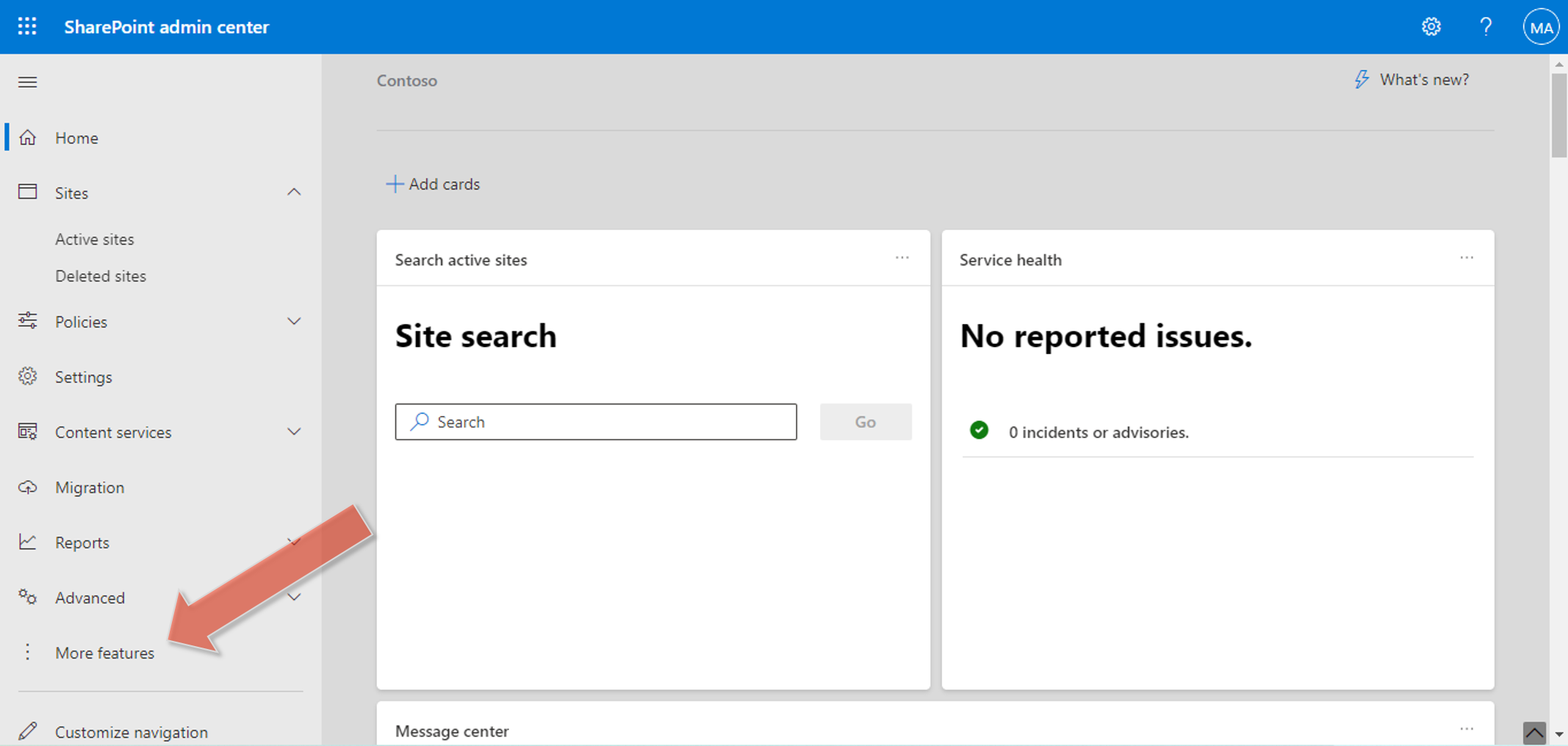
Open the left navigation menu and select More features.
-
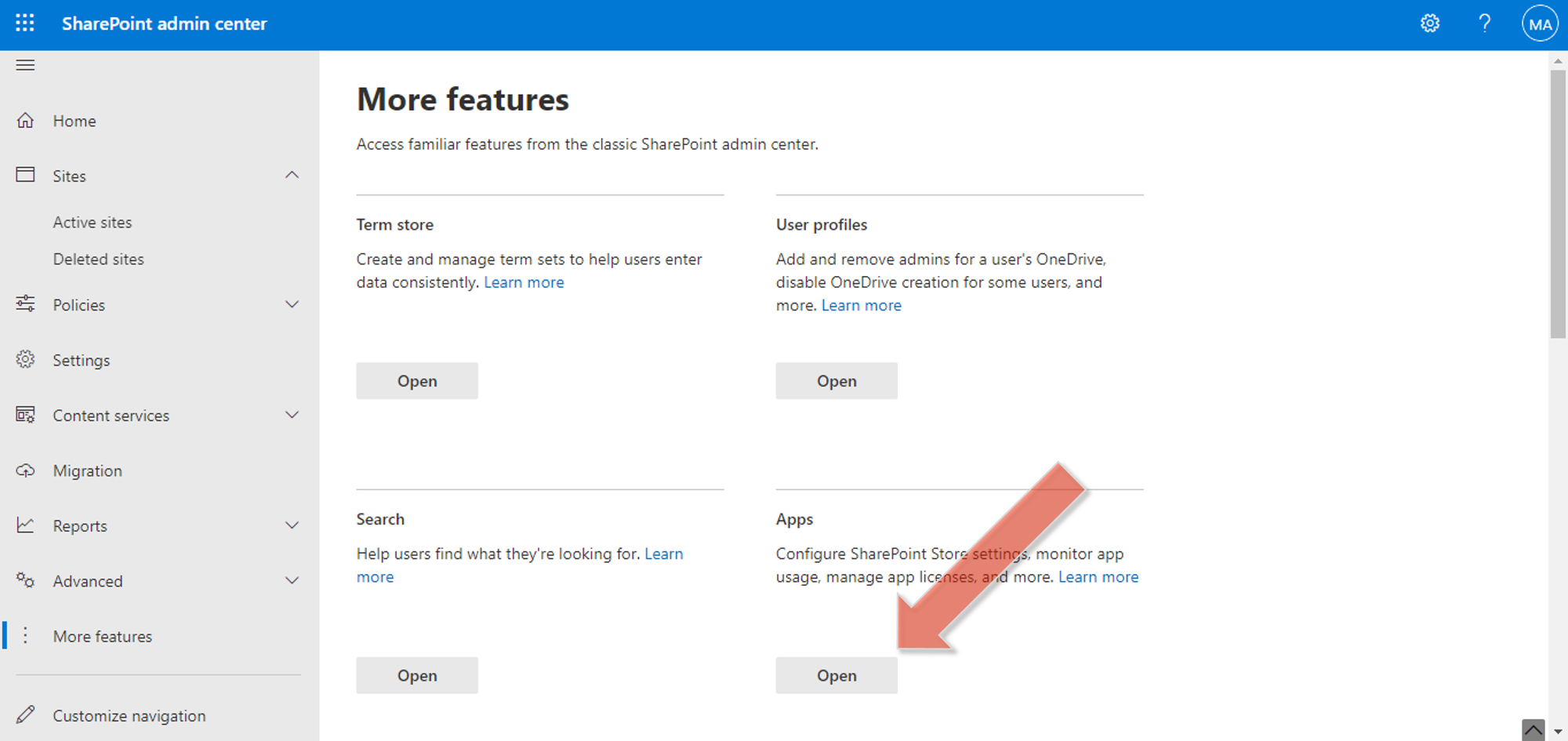
Under Apps, select Open.
-
In Manage apps, find Sprocket 365.
-
Select the app.
-
Choose Upgrade if SharePoint shows an upgrade action.
-
Follow the prompts to complete the upgrade.
After the upgrade, it may take several minutes for SharePoint caching to update across your sites.
If Upgrade Is Not Available
If the App Catalog does not show an Upgrade action, use the primary Sprocket upgrade guide or contact support for the correct package update path for your tenant.