Applying Templates
This guide walks you through applying a template to your SharePoint site.
Before You Apply
Requirements
- Site Owner permissions on the site where you want to apply the template.
- Active Sprocket license for your organization's SharePoint Tenant.
Applying a template may add new pages, lists, and web parts to your site. Review the template details before applying.
How to Apply a Template
1. Open Template Gallery
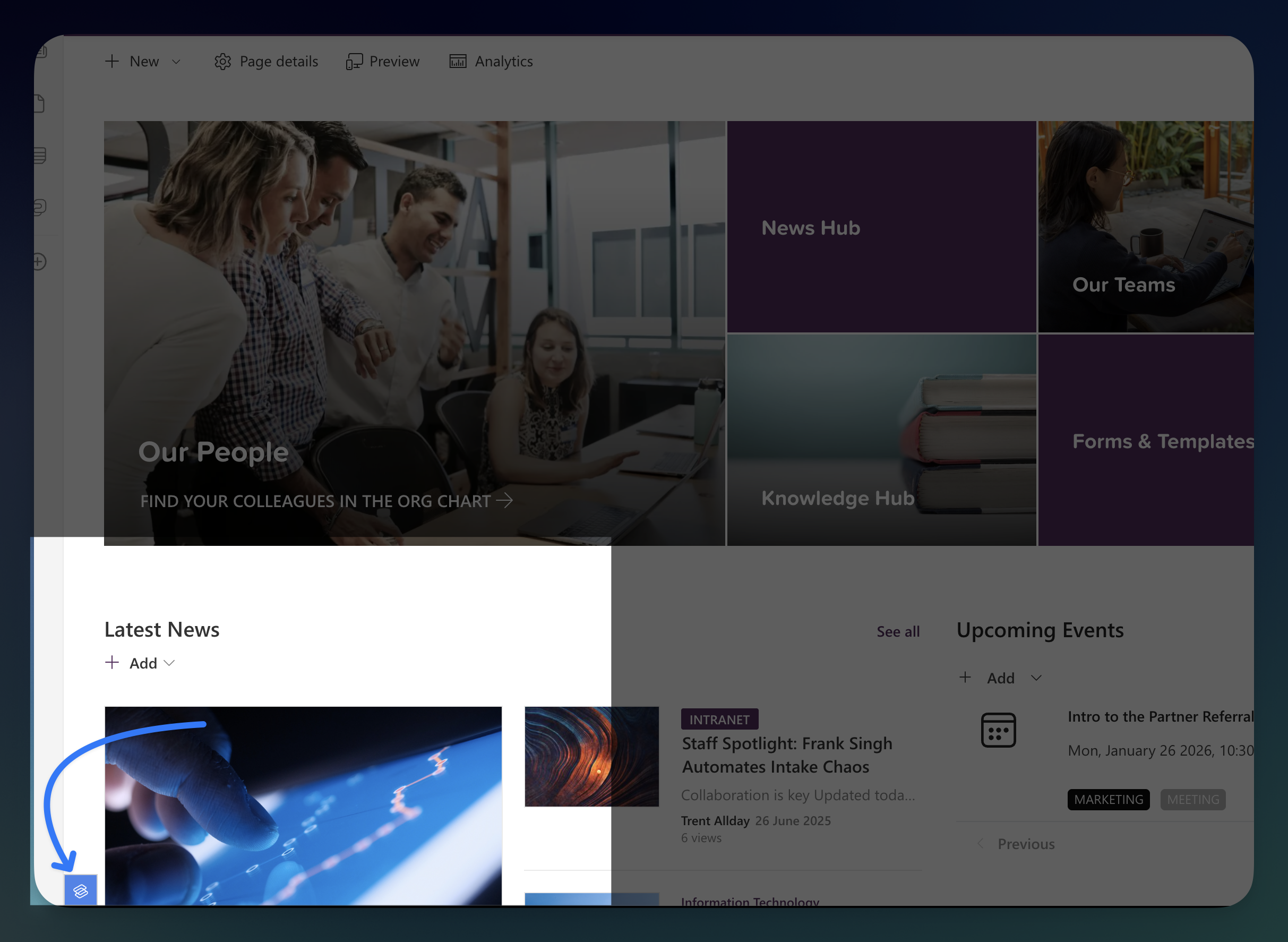
- Click the Sprocket Settings icon at the bottom left of your SharePoint site
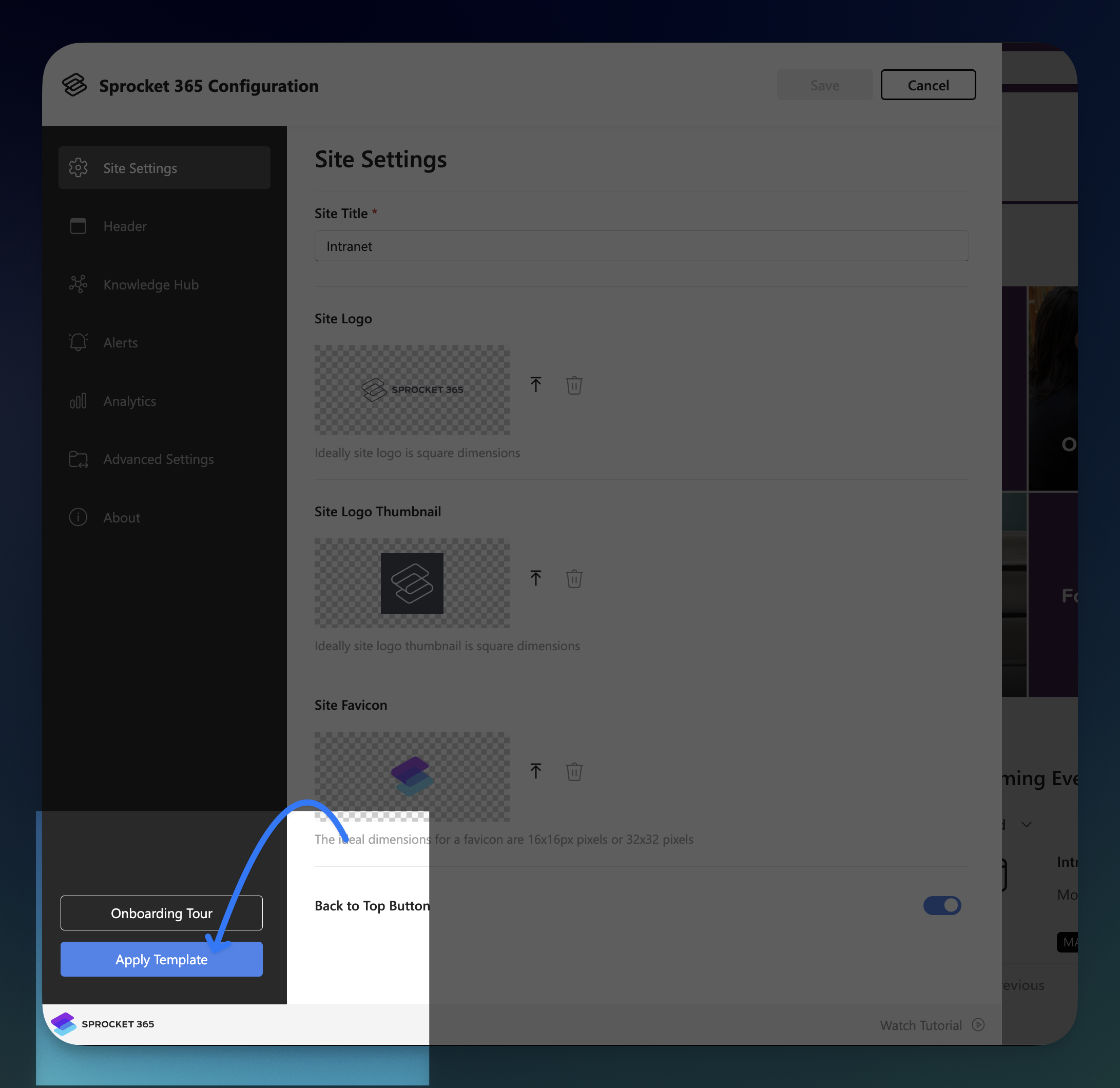
- Click the Apply Template button
2. Find Your Template
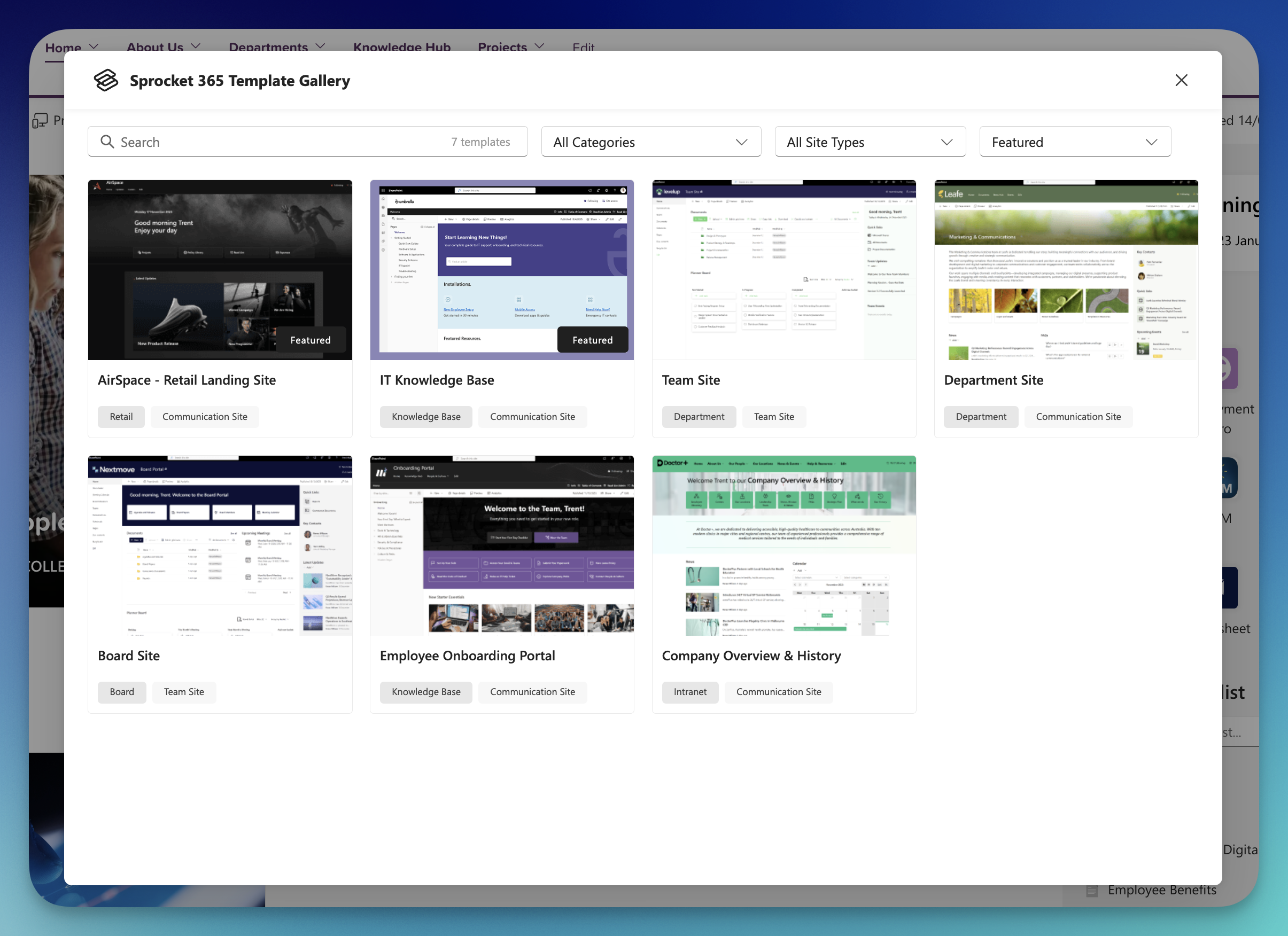
Browse, search, or filter to find the template you want. Click on a template card to see more details.
3. Review and Apply
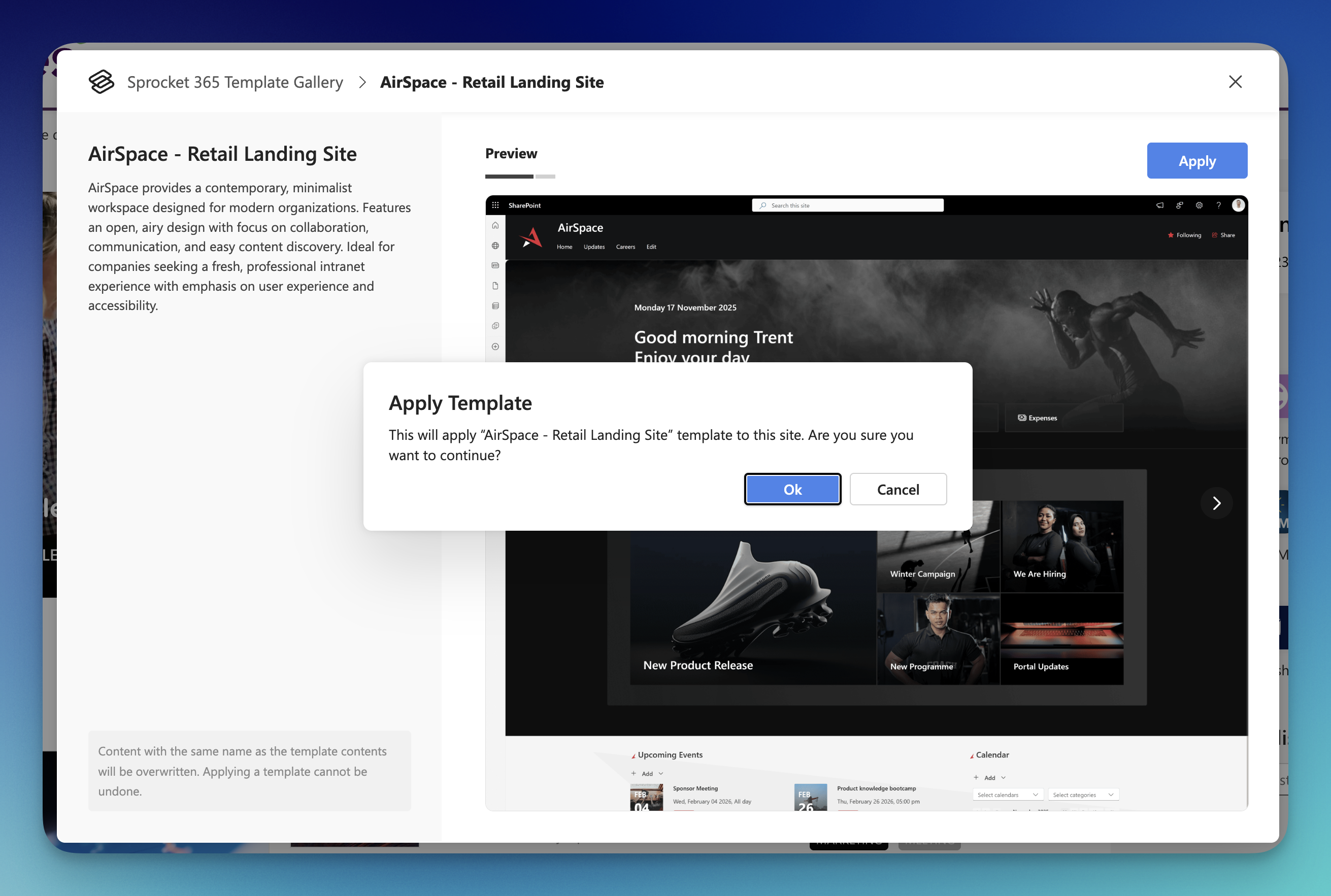
- Review the preview images and description
- Click the Apply Template button
- Confirm you want to proceed
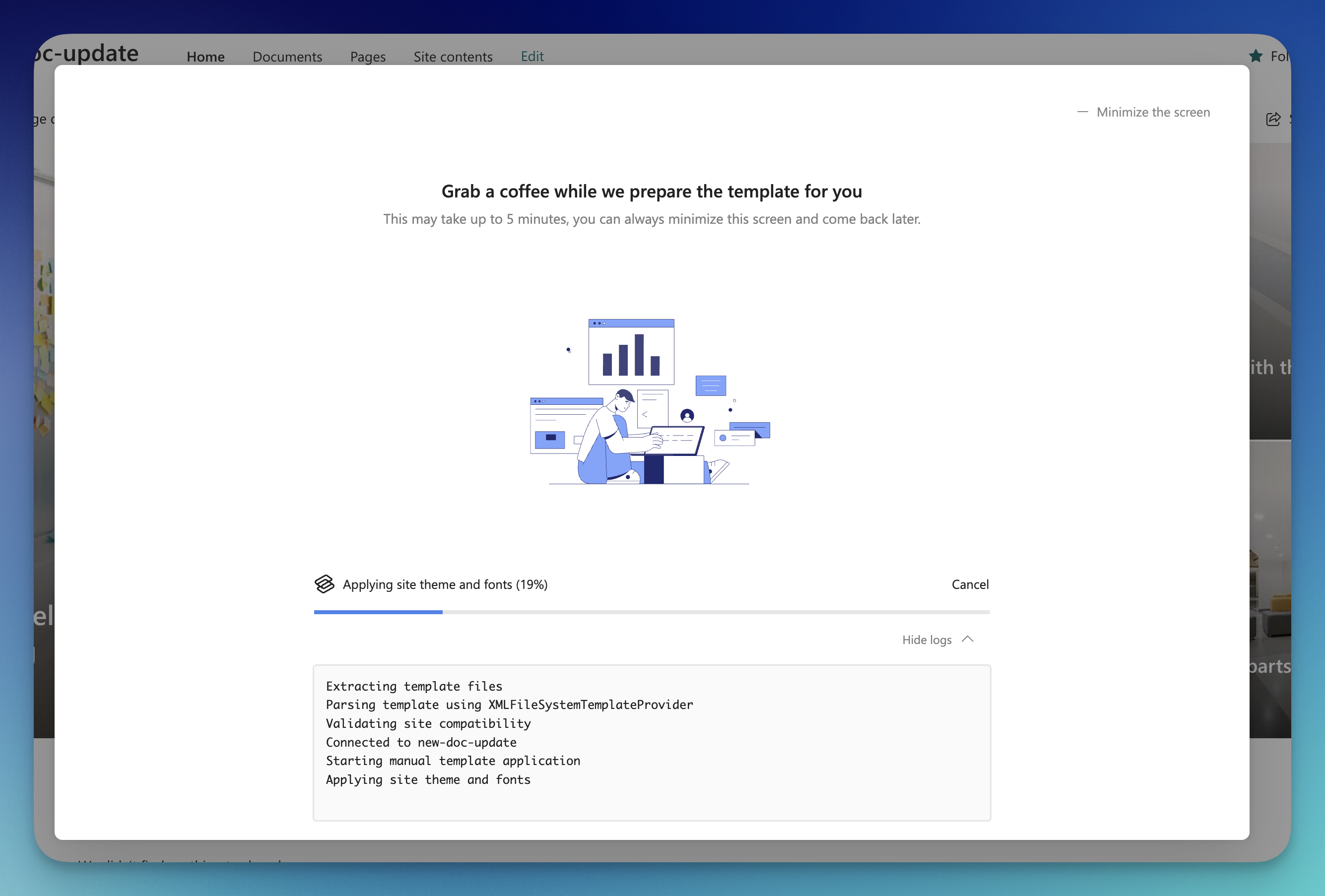
4. Wait for Completion
The progress view shows you what's happening as the template is applied. Once complete, you'll see a success message.
Site Type Compatibility
Templates are designed for either Team Sites or Communication Sites. If a template isn't compatible with your site type, the Apply button will be disabled.
| Site Type | Best For |
|---|---|
| Team Site | Team collaboration, shared documents, project workspaces |
| Communication Site | Company announcements, news, broadcasting to a wide audience |
If Something Goes Wrong
Application Failed
If the template fails to apply:
- Check the error message for details
- Click Retry to try again
- If the problem continues, contact support
Need to Cancel?
Click Cancel during the application process if you need to stop. Note that some parts of the template may already be applied.
Frequently Asked Questions
Can I undo a template application?
There's no automatic undo. You would need to manually remove any content you don't want.
Will applying a template delete my existing content?
No, templates add new content without removing what's already there.
Can I apply multiple templates to the same site?
Yes, but be aware that templates with similar content may create duplicates.